Work the queue
Open the current step with contact history and talking points. Ask Vee to personalize the message for that person.
Vesso Sales Cadences
Know who to reach next and why. Build a sequence with Vee, work through email, calls and LinkedIn tasks, and adapt the next touch to the reply. Give your team a shared way to keep conversations moving.
Free for 7 days · No credit card required
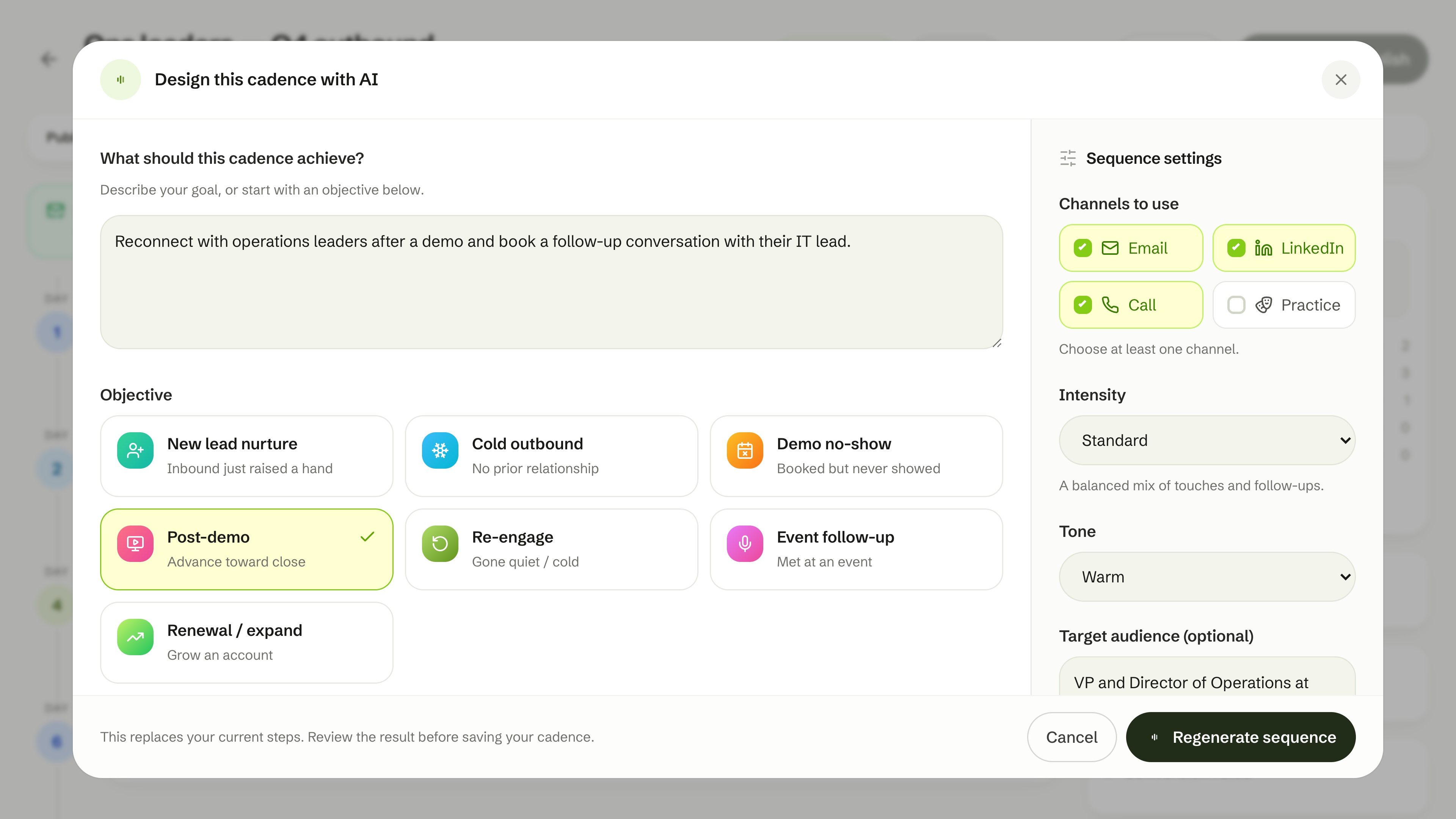
Start from a template or describe the audience and outcome to Vee. Review the copy, reorder the steps, and set the delays before enrolling contacts.
An introductory email, personalized for the contact.
A call task with an objective, questions and a voicemail script.
A LinkedIn task for the rep to review and complete.
An auto-send email that continues the earlier email thread.
Example schedule. A detected reply or a logged call outcome can change what happens next. LinkedIn steps are rep tasks; they do not send messages automatically.
Use merge tokens for contact, company and sender details. Ask Vee for a draft, then review the message before it goes into your sequence.
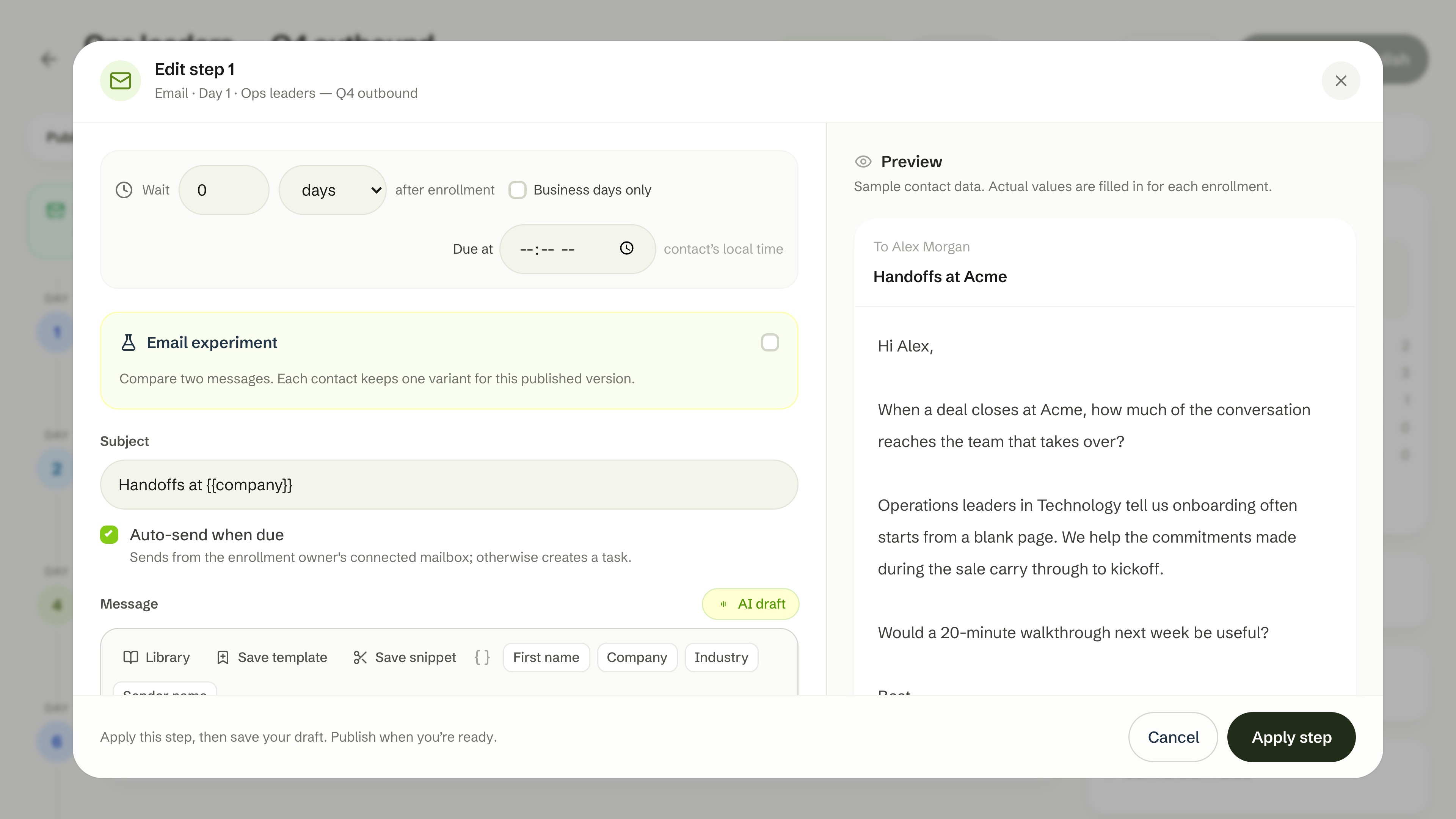
Email and call windows can follow each contact’s local time. New windows default to weekdays, 9 AM to 5 PM, and wait for review when the timezone is unknown.
Set excluded dates, mailbox sending limits and spacing between outreach emails. Schedule an email for the next available time, or save a call reminder. Your queue shows what is ready and what needs a timezone.
Explore Vesso DialerOutside the calling window? The call waits until the next eligible time.
A callback should keep the agreed time. A booked meeting should pause outreach. Set the rules once, then log each call with its outcome and notes.
This example retries after 24 hours, with a limit of 3 attempts. Once that limit is reached, the cadence continues to the next step.
Illustrative rules. Configure each call playbook to continue, retry, pause, end, or move the contact to another active cadence. Callbacks and booked meetings have their own handling.
Work through due outreach in one queue, then review enrollments, activity and results as the sequence runs.
Open the current step with contact history and talking points. Ask Vee to personalize the message for that person.
Review active, paused, completed and exited contacts. Pause, resume or remove enrollments as the relationship changes.
Inspect reply rates, completion and the per-step funnel. Use the activity history to see what happened before changing the sequence.
For revenue and sales leaders: see team workload, compare cadence activity, and spot the follow-up that needs a manager. Turn the team’s outreach into a clearer coaching conversation.
| Rep | Active | Due now | Status |
|---|---|---|---|
| Alex MorganCommercial | 48 | 12 | Replies waiting |
| Sam RiveraCommercial | 36 | 8 | Behind pace |
| Jordan LeeEnterprise | 24 | 2 | On track |
Showing 3 reps
Interactive illustration with sample data. Switch boards or filter for attention. In Vesso, visibility follows workspace reporting permissions.
Review active work, due and overdue steps, waiting replies and activity. Filter by team and compare today, the last 7 days or the last 30 days.
See rep activity and progress against targets. Drill into their enrollments, replies and calls, and adjust targets when your role allows it.
Attention flags surface overdue steps, waiting replies, inactivity and reps behind pace. Review reply intent, and ask Vee to classify unread replies using AI credits.
Automatic email needs a connected mailbox. Calling and AI actions use workspace credits. Check availability and plan details for your team.
Integration availabilityEmail steps can auto-send from the enrollment owner’s connected mailbox when enabled. Call and LinkedIn steps are work for the rep to complete. If auto-send cannot run, for example because the mailbox is disconnected, Vesso creates a task for review.
Yes. An auto-send email step can reply in the same thread as an earlier auto-sent email in that enrollment. Enable “Send as reply in the same thread” when configuring the follow-up step.
When connected-mailbox sync detects an inbound email from an enrolled contact, Vesso pauses their active cadences for review. Reps can also mark a reply manually in Outreach. Automatic detection depends on a connected, syncing mailbox.
New calling windows default to weekdays, 9 AM to 5 PM in the contact’s local time. Unknown timezones wait for review unless you choose a fallback. Outcomes configured to retry schedule another attempt after the chosen delay, aligned with the next allowed calling window. When the attempt limit is reached, the cadence continues to the next step.
No. Choose a callback date and time when logging the call. Vesso reschedules the current call step for that time. A booked meeting pauses outreach; “Do not call” suppresses the number and ends the cadence.
Create a cadence, review its steps and enroll contacts. Automatic email requires a connected mailbox; Gmail and Outlook mail are enabled per workspace on request. Browser calling requires calling enabled, an available caller ID number and credits. Calling, phone numbers and AI actions have usage costs; see pricing and integration availability.
Bring your outreach and customer context into the same workspace. Set up a cadence, review it, and give each next step an owner.
Free for 7 days · No credit card required