ChatGPT
Add Vesso as a custom MCP connection in ChatGPT, choose OAuth, then sign in to Vesso and approve access. Availability follows your ChatGPT plan and workspace permissions.
Connect with OAuthVesso MCP
Give your preferred AI assistant access to the customer context already in Vesso. Find the last conversation, prepare for the next one and work with the permissions your team approves.
Free for 7 days · No credit card required
Connect a supported assistant to Vesso so it can find CRM context, meeting notes and tasks within the access you approve.
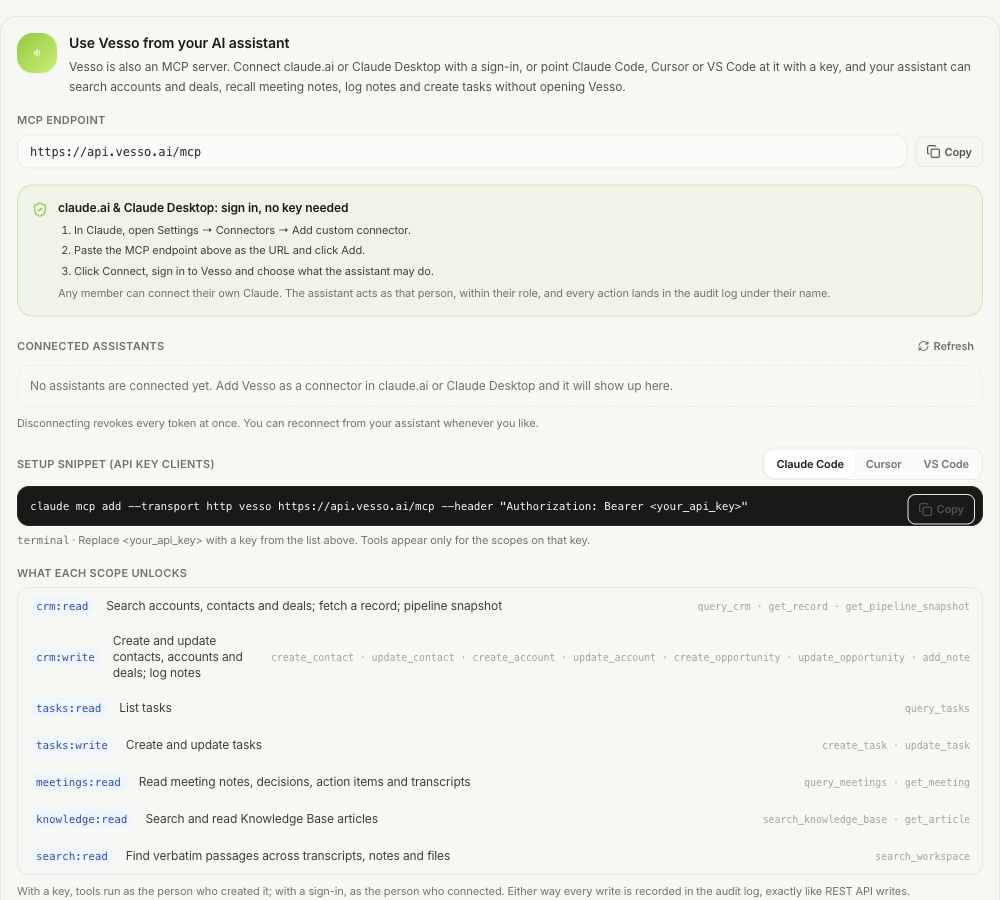
Use a supported client to connect to Vesso’s remote MCP server. Choose the connection method that fits your workflow.
Add Vesso as a custom MCP connection in ChatGPT, choose OAuth, then sign in to Vesso and approve access. Availability follows your ChatGPT plan and workspace permissions.
Connect with OAuthAdd Vesso as a custom connector, sign in, and approve the requested scopes through OAuth. Manage the connection from Vesso.
Sign in and authorizeAdd Vesso’s MCP server URL in Gemini’s Connected Apps and complete authorization. Custom apps are available to eligible personal Google accounts, with Google’s region and language requirements.
Add a custom connected appConnect your terminal or editor to the same Vesso endpoint with a scoped Platform API key. Gemini CLI also supports OAuth sign-in for remote MCP servers.
Bring context into your development toolsOther MCP clients need compatible remote Streamable HTTP and authentication support. Provider availability can vary by plan, account, region and workspace permissions. See the official ChatGPT setup guide, Gemini eligibility and setup, and Gemini CLI connection guide.
Ask about the deal, look up the last conversation, or put the follow-up on the record. Each tool category has its own permission scope.
Find accounts, contacts and opportunities. Get a pipeline snapshot. With write access, create or update records and add notes.
crm:readcrm:writeSee the work that needs doing. With write access, create a task or update an existing one from the conversation.
tasks:readtasks:writeFind meetings you organize and retrieve their available notes and transcripts to prepare for the next conversation.
meetings:readSearch published knowledge-base articles and retrieve the guidance your team has made available in Vesso.
knowledge:readFind relevant passages in transcripts, notes and files the connected member can access.
search:readEvery connection belongs to a workspace and acts as a specific member. Permissions decide which tools the assistant can use.
Separate read and write scopes for CRM and tasks. Read-only access for meetings, knowledge and search. Only permitted tools appear to the client.
Tool calls are recorded against the acting member with the tool, scope and a redacted argument summary. OAuth approvals, denials and revocations are audited too.
Revoke an API key or disconnect an OAuth grant from Vesso. Members manage their own connections; admins can manage connections across the workspace.
MCP is available to active business workspaces with approved Platform API access, when the public API is enabled. Start in Admin Settings → Integrations → API Access.
Talk to us about API accessHave a workspace admin request access and confirm approval.
Use the endpoint and setup details shown in Vesso. Sign in through OAuth or configure a scoped API key.
Start with the context your team needs. Add write scopes when you want the assistant to update records or tasks.
MCP stands for Model Context Protocol. Vesso exposes a set of tools that let a compatible AI client retrieve customer context and, with the right permissions, update CRM records and tasks in your workspace.
Connect ChatGPT, Claude on the web, Claude Desktop, Gemini, Gemini CLI, Claude Code, Cursor and VS Code through their remote MCP connection options. Other clients need compatible Streamable HTTP and authentication support. Available connections and actions depend on the client, plan, account and workspace permissions.
In ChatGPT, add a custom MCP server and choose OAuth to sign in to Vesso. In Gemini, add the MCP server URL under Connected Apps and complete authorization. Gemini custom apps currently require a personal Google Account, age 18 or over, US availability, English and Keep Activity enabled; work and school accounts are not eligible for that connection path. Gemini CLI is a separate client with remote MCP support through OAuth or an API key.
Yes. Choose only read scopes when approving a connection or creating an API key. The client only receives tools allowed by those scopes. Viewer members can only approve read scopes through OAuth.
OAuth tools act as the member who approved the connection. API-key tools act as the key’s creator. Access stays within that workspace and the tool’s permission rules. Meeting tools cover the acting member’s own organized meetings; workspace search only returns content that member can open.
Disconnect the OAuth connection in Admin Settings under Integrations and API Access, or revoke the API key used by the client. Members can disconnect their own OAuth connections, and workspace admins can manage connections across the workspace.
MCP requires an active business workspace with approved Platform API access and the public API enabled for the deployment. It is not available for student workspaces. Request API access from Admin Settings, then use the connection details shown for your workspace.
Bring Vesso into your team’s AI workflow with access you can define, audit and revoke.
Free for 7 days · No credit card required